
Did you know you can listen to thousands of digital audiobooks on the Libby app?
The Libby app
With the Libby app, you’ll find the Library's largest and most popular collection of eBooks and digital audiobooks (with 60,000+ titles) and the latest issues of 3,000+ magazines—including such popular titles as The Economist, The New Yorker, and Bon Appétit.
If you don't have the Libby app yet, you can download it from the app store on your device. You'll need your Lake Forest Library card and PIN to get started. Watch a how-to video to help you install and set up Libby.
Spot audiobooks in search results
When searching for a title in Libby, you may find both standard eBook and audiobook versions.
You can tell the difference between the two by looking for the headphone icon—as you can see in screenshot #1 (right-hand side), which shows two search results for Jhumpa Lahiri’s The Lowland.
The audiobook has a headphones icon below the cover image, which also specifies the length of the audiobook.
Get to know the audiobook player
Once you have checked out and opened up an audiobook in Libby, you will see the cover image along with a variety of icons that allow you to fine-tune your listening experience. Check out the diagram to see how each of these icons and menus functions:
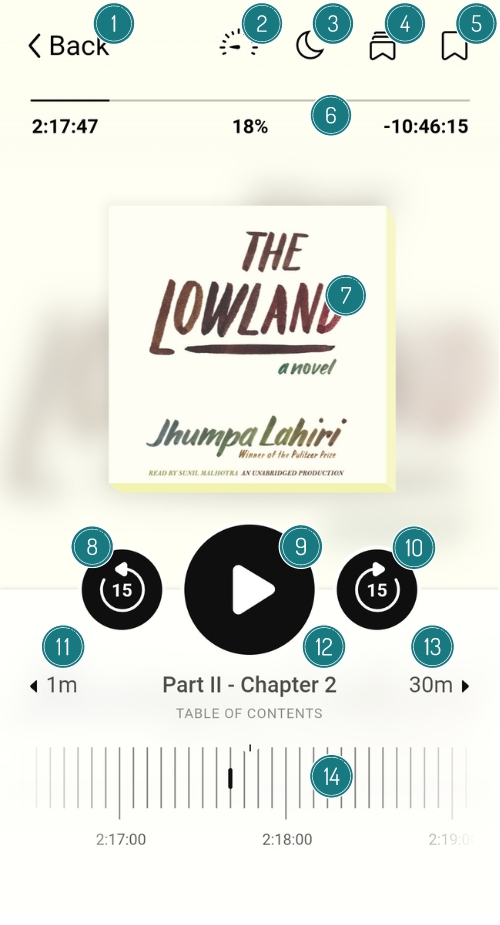
- Back: Will take you back to Libby to select another book.
- Speedometer icon: Opens a menu to adjust the audiobook's playback speed. Speeds less than 1.00 will be slower than normal speed, and speeds higher than 1.00 will be faster. Libby allows you to adjust the speed for individual audiobooks or select a preset for all of your audiobooks.
- Moon icon: This icon will allow you to set Libby’s sleep timer, which is a helpful option if you like to listen to audiobooks as you fall asleep. The sleep timer allows you to select an amount of time for the audiobook to play before stopping.
- Multiple bookmark icon: If you have selected bookmarks or highlights in this audiobook, you can skip to them here.
- Bookmark icon: Pressing this icon allows you to place a bookmark or highlight for a section of the audiobook. Pressing the icon twice allows you to add a note to the bookmark or highlight.
- Progress bar: This bar at the top of the screen displays your progress in the audiobook in hours/minutes/seconds and as a percentage.
- Book cover: Pressing the book cover will display more information about the book.
- 15-second rewind: Pressing this leftward-facing arrow icon will rewind the audiobook 15 seconds.
- Play button: This center icon will play or pause the audiobook.
- 15-second faster forward: Pressing the rightward-facing arrow will fast forward the audiobook 15 seconds.
- Rewind: This icon will rewind the audiobook to the beginning of the current chapter (the number of minutes varies based on your position in the chapter and the length of the chapter).
- Chapter menu: Pressing this option will allow you to jump to another chapter in the audiobook.
- Fast forward: This icon will fast forward the audiobook to the end of the current chapter (the number of minutes varies based on your position in and the length of the chapter).
- Timeline: Swiping your finger on the timeline bar at the bottom of the screen will allow you to move as far backward or forward in the audiobook as you want.
Listen in the car, additional help
Libby is compatible with car-based media apps and interfaces like Android Auto and Apple CarPlay. Access more information on those functions and other questions about listening to audiobooks in Libby.
